SKX PRO
HAMMOND SKX PRO Updater Release1.4

This is updater release 1.4 for the Hammond SKX PRO.
*A USB Flash Drive or USB cable is required for the update.
*Please also download the newly updated Hammond SKX PRO owner's manual.
skxpro_release14(510 MB)Download(07/13/2026)
How to load the update data using a USB Flash Drive
Make sure you have enough time to do the update and the AC power is stable. The update process takes up to 20 minutes and if the power is turned off in the middle of update, the unit may not start.
*The video and the following images are SK PRO, but the way of loading the SKX PRO update data is the same as the one with SK PRO.
Preparing for SKX PRO update
Download the update data from above in this page to your computer and unzip or decompress the file. You only need the ***.bin files.
1. Confirm the current SKX PRO version
 From Menu Open SYSTEM > INFORMATION > VERSION-FIRMWARE
Check version. No need to update if you already have the same release number.
2. Insert a USB Flash Drive to SKX PRO (instrument is ON)
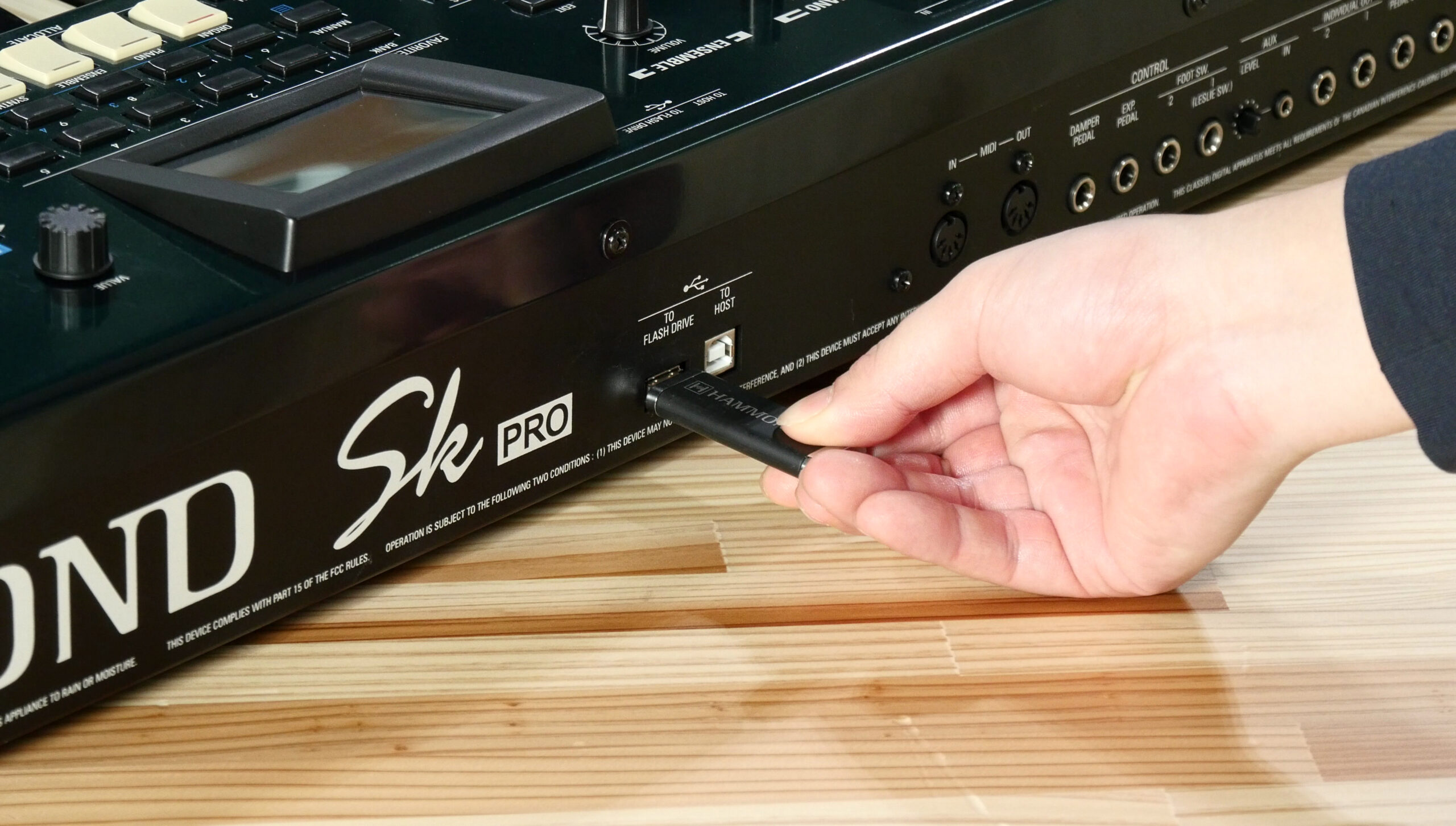 A /hammond/sk_pro folder will be created in the USB Flash Drive.
3. Copy the update data to the USB Flash Drive
Insert the USB Flash Drive to your PC and copy all the update data(***.bin) to the SYSTEM folder.
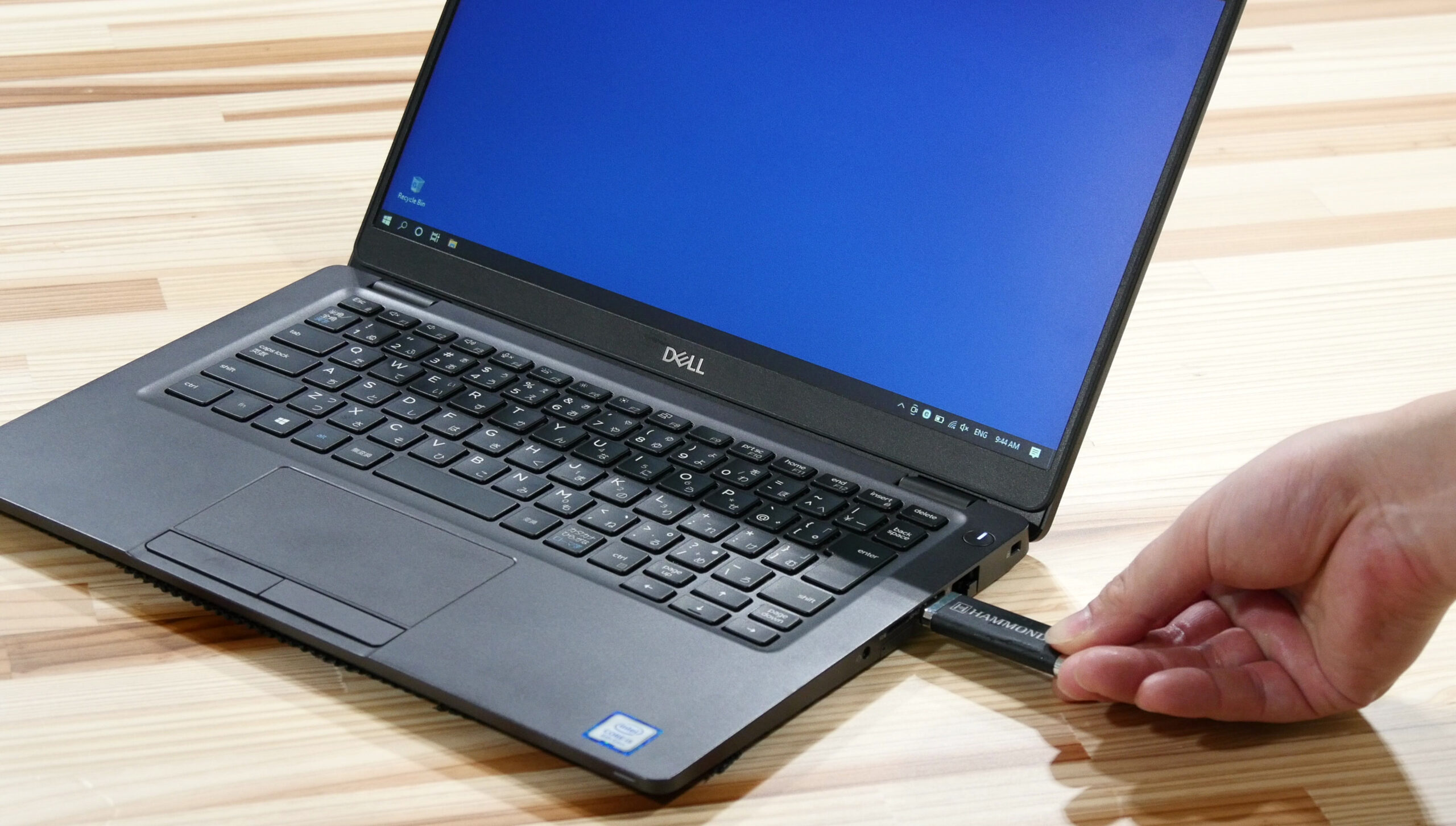
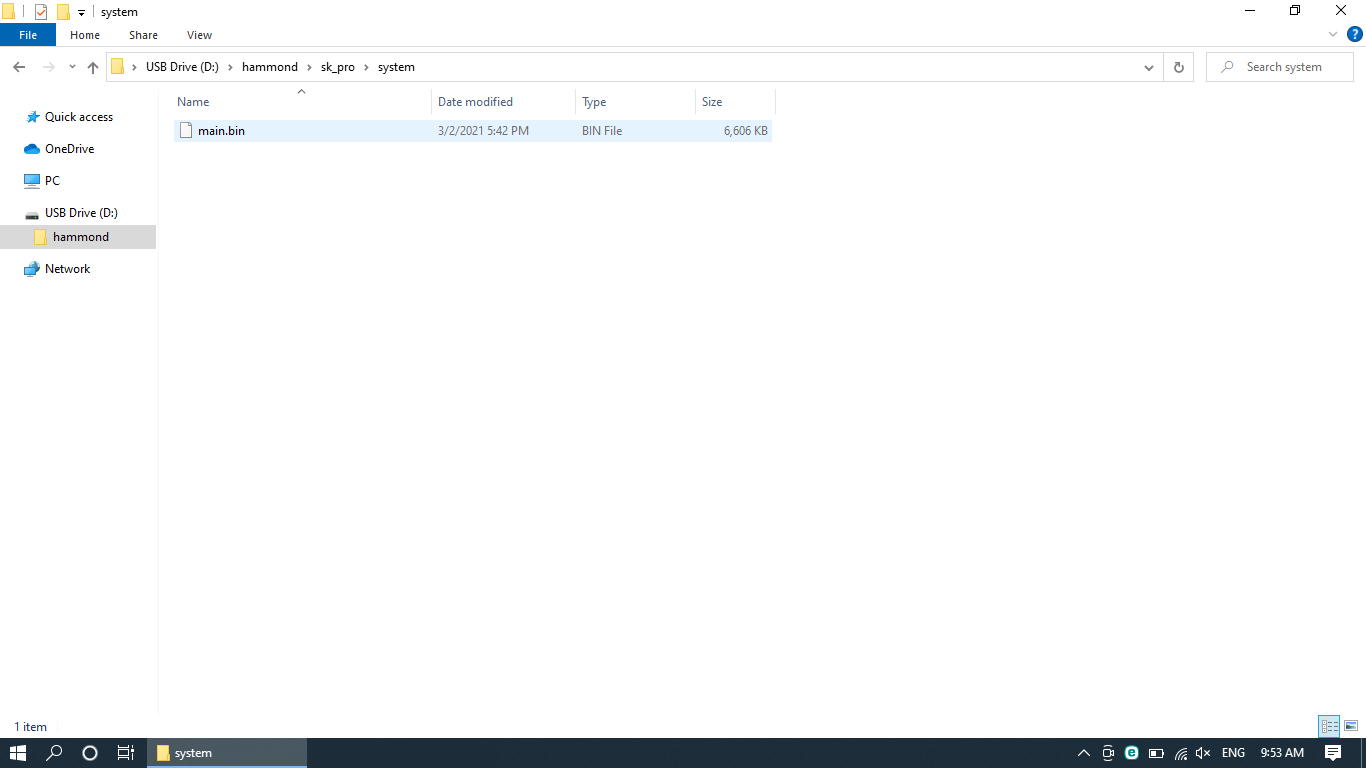 Open hammond > sk_pro > system folder. Copy all the update data(only***.bin) to the system folder.
4. Load update data
Insert the USB Flash Drive to SKX PRO and load update data.

- Insert the USB Flash Drive where you copied the update data to SKX PRO.
- From Menu display Open SYSTEM > INFORMATION > UPDATE
- Select [USB Flash Drive] and execute UPDATE.
- Confirm that the update is completed on the display and turn off the power.
This completes the update. Thank you for your cooperation.
How to load update data using a USB cable
Make sure you have enough time to do the update and the AC power is stable. The update process takes up to 20 minutes and if the power is turned off in the middle of update, the unit may not start.
Preparing for SKX PRO update
Download the update data from above in this page to your computer and unzip or decompress the file. You only need the ***.bin files.
1. Confirm the current SKX PRO version
From Menu Open SYSTEM > INFORMATION > VERSION-FIRMWARE
Check version. No need to update if you already have the same release number.
2. Connect a PC to SKX PRO
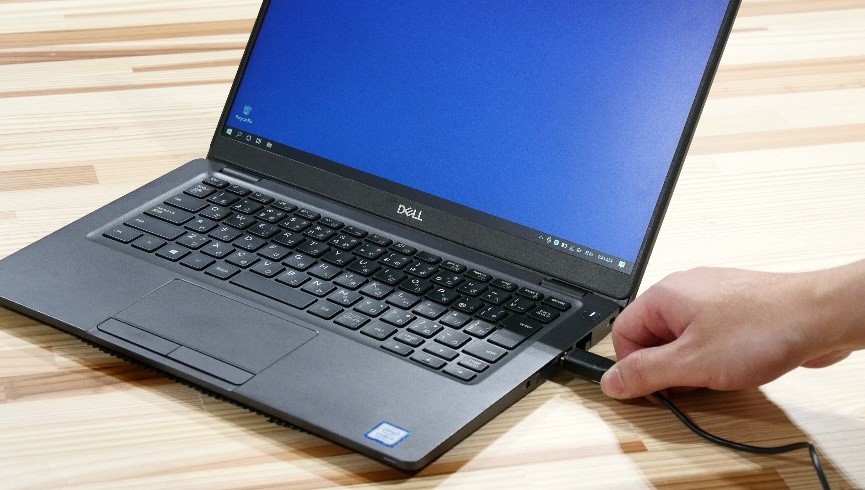
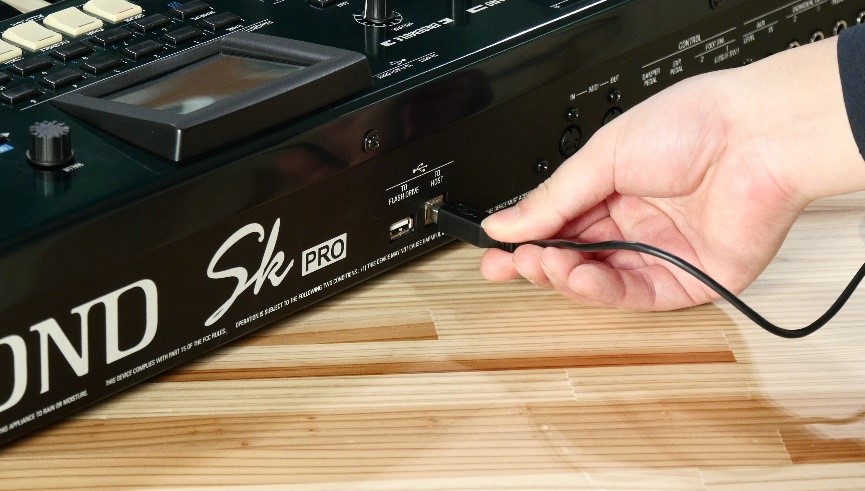 Connect your PC and SKX PRO with a USB cable.
3. Copy the update data to SKX PRO
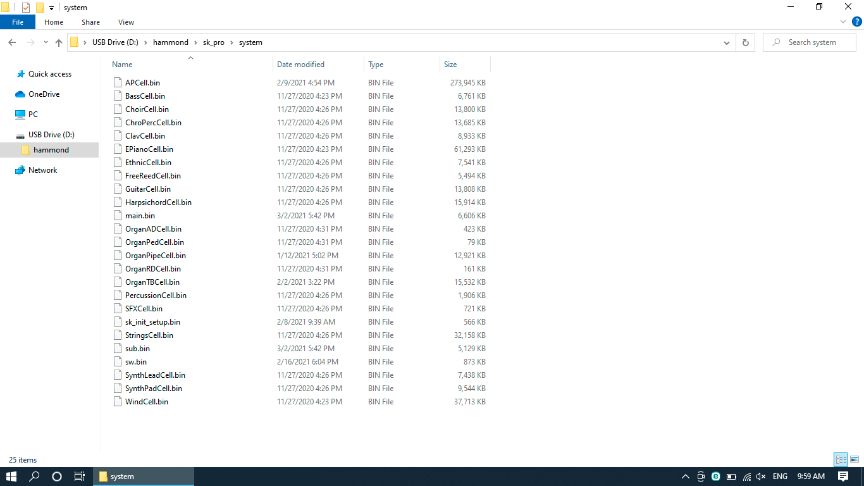
Copy all the update data (***. bin) to the internal SKX PRO system folder.

- First enable the USB mass storage function.
- From MENU Open SYSTEM > GLOBAL > USB
- Turn MASS STORAGE “ON”
- Now it is ready to connect to your PC.
Open hammond > sk_pro > system folder. - Copy all the update data (***. bin) to the SYSTEM folder.
- Set SKX PRO’s MASS STORAGE to “Off”.
4. Load update data

- From Menu Open SYSTEM > INFORMATION > UPDATE
- Make sure that Internal Memory is selected and run UPDATE.
- Confirm that the update is completed on the display and turn OFF the power.
This completes the update. Thank you for your cooperation.
※If the message “Please Try Again.” is displayed in the update dialogue, turn the power off and then on again, and try the update again.